
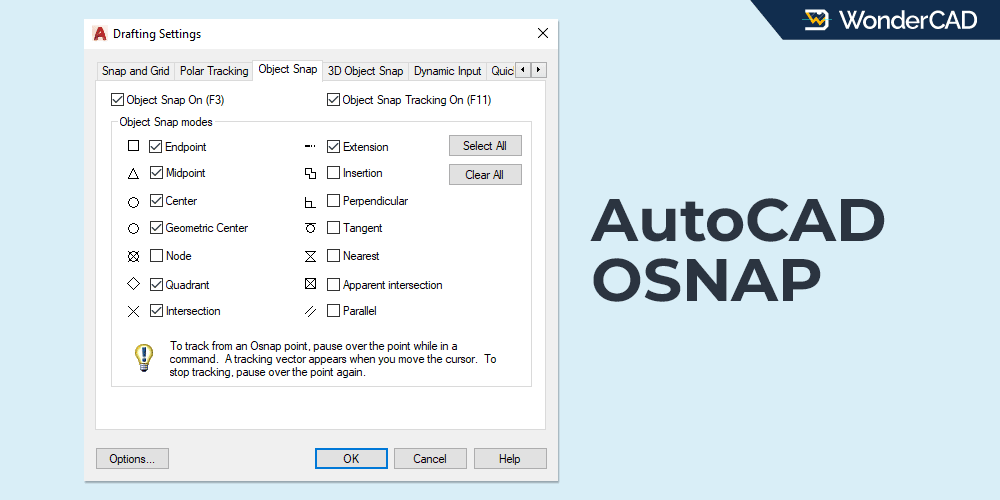
AutoCAD has many features that simplify the drawing process, such as OSNAP, ORTHO, and more.
This article explains the function of OSNAP and two related features: Object Snap Tracking and Temporary OSNAP.
Let’s begin with OSNAP.
A. OSNAP
OSNAP (Object Snap) helps the cursor locate specific points on an object, such as endpoints, midpoints, and more.
You can find specific points accurately and easily because OSNAP has a magnetic effect when the cursor approaches a snap point.
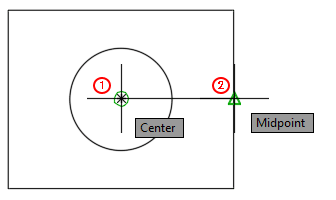
For example, let’s say you want to draw a line from the center of a circle to the midpoint of a nearby line. You can do this easily and accurately if OSNAP is active.
See the image below:
You can turn this feature ON or OFF by clicking the OSNAP icon  in the Status Bar or by pressing the F3 key on the keyboard.
OSNAP has several snap modes for finding different targets. You can choose to enable certain snap modes and disable others.
To do this, right-click the OSNAP icon in the status bar, then click “Object Snap Settings.” This will open the Drafting Settings dialog box under the Object Snap tab.
You should see a dialog box similar to the one below:
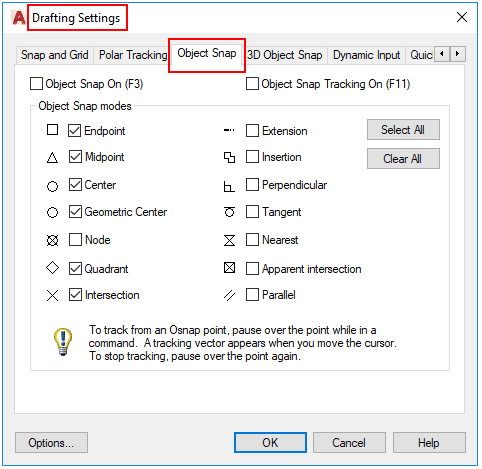
Check the snap modes you use frequently and uncheck those you don’t need.
Enabling all snap modes can sometimes make drawing more difficult.
Therefore, only enable frequently used snap modes. For snap modes that are only used occasionally, you can use Temporary OSNAP when needed.
B. Object Snap Tracking
Object Snap Tracking helps you align the cursor with object snap points using temporary horizontal and vertical tracking paths.
The tracking line will appear when you point to a specific snap point (without clicking) and then move the cursor away.
You can use this tracking line for various purposes, such as:
- Move an object to a position that is aligned with a specific point.
- Create a new object aligned with a selected snap point.
- Find the intersection point between two snap points.
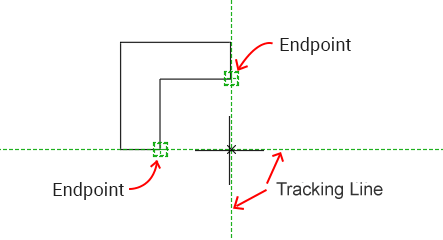
OSNAP Tracking can be enabled and disabled by clicking its icon  in the Status Bar, or by pressing the F11 key on the keyboard. This feature cannot be used if OSNAP is OFF.
C. Temporary OSNAP / Snap Override
Temporary OSNAP allows you to use specific object snap modes for a single use, without permanently changing your running OSNAP settings.
This feature is also called Snap Override because when you use it, all active snap modes are temporarily ignored, allowing the cursor to focus only on the snap mode selected through Temporary OSNAP.
This is useful when you need a specific snap for a single operation for various reasons, such as needing a snap mode that is rarely used and currently disabled, or because there are too many snap points close together, making it difficult to find the intended snap target.
Temporary OSNAP also includes snap modes that are not available in the regular OSNAP settings, such as “From” and “Mid Between Two Points” modes. For more details, see the image below:
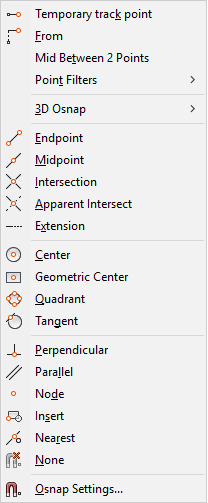
To use Temporary OSNAP, press Shift + Right Click, then select the snap mode you need.
Leave a Reply