
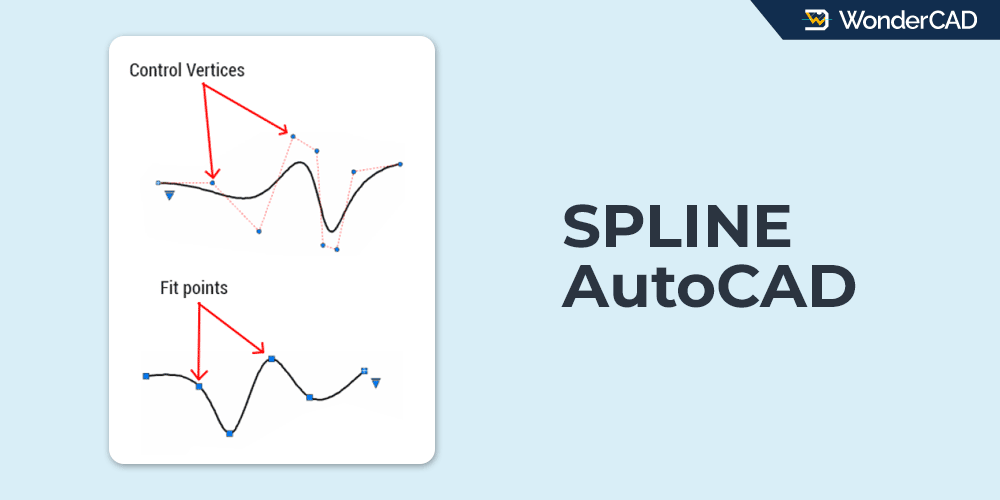
In this tutorial, you’ll learn how to use the SPLINE command in AutoCAD.
The SPLINE command is used to create smooth curves that pass through or near a series of user-defined points.
The icon and keyboard shortcut for the SPLINE command are shown in the table below.
| Command | SPLINE |
| Function | Create a smooth curve based on multiple user-defined points |
| Icon |  |
| Shortcut | SPL |
The SPLINE command belongs to the DRAW command group.
You can activate the SPLINE command from the Draw panel on the Ribbon under the Home tab. You can also find it in the Draw menu on the Menu Bar.
There are two methods for creating splines: Fit Points and Control Vertices.
If you activate the SPLINE command from either of the locations mentioned above, you can directly choose the method that best suits your needs. See the image below.
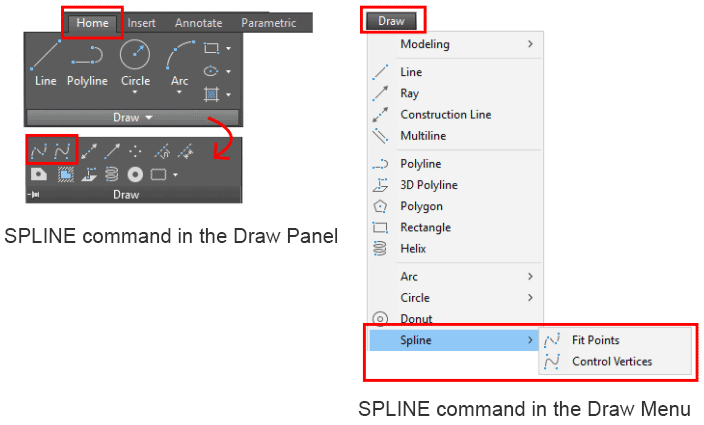
You can also activate the SPLINE command from the command line by typing SPLINE or simply SPL, then pressing Enter.
However, if you start the SPLINE command from the command line, you may need to use the Method option to select the spline creation method you need.

The method displayed inside the angle brackets (< >) is the currently active method. If it already matches your needs, you can simply continue without changing it.
A. Fit Point vs. Control Vertices
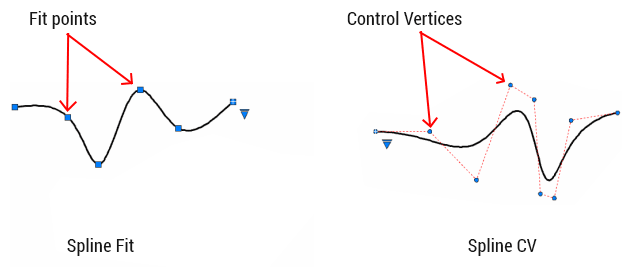
A spline created using the Fit Point method is called a Spline Fit. This type of spline always passes through the points you specify. In this method, the points are known as fit points. You can modify the position of the fit points to adjust the shape of the spline as needed.
A spline created using the Control Vertices method is called a Spline CV. Unlike a Spline Fit, this type of spline does not pass through the points you specify. Instead, the points act as control vertices that influence the shape of the curve. You can move the control vertices to adjust the spline and achieve the desired shape.
B. How to Create a Spline in AutoCAD
To create a spline in AutoCAD, simply follow these steps:
- Start the SPLINE command and select either the Fit or CV method.
- Click the first point, second point, and any additional points needed to define the spline.
- Press Enter to complete the command.

Leave a Reply