
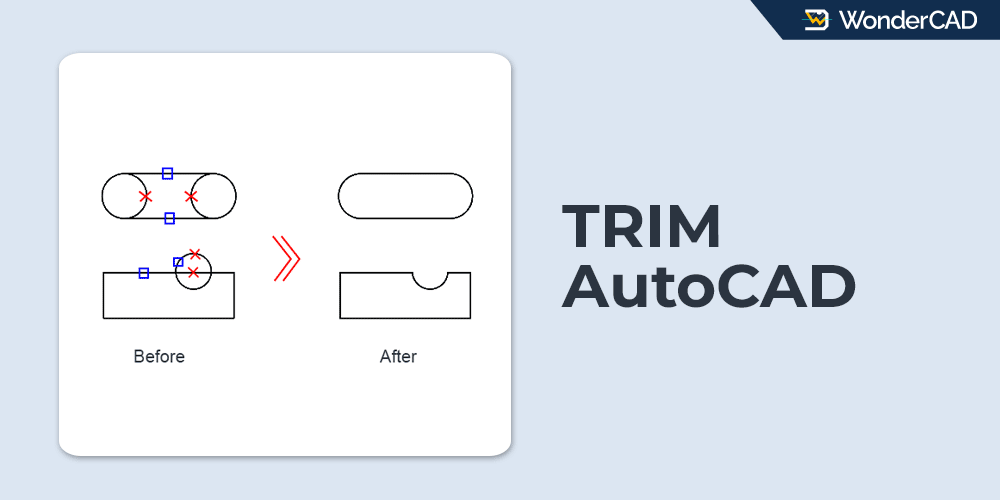
In this tutorial, you will learn how to use the TRIM command in AutoCAD.
The TRIM command is used to remove unwanted portions of objects using other objects as cutting edges. The command icon and keyboard shortcut are shown in the table below.
| Command | TRIM |
| Function | Removes unwanted portions of objects using other objects as cutting edges. |
| Icon |  (new) (new) (old) (old) |
| Shortcut | TR |
The TRIM command is part of the Modify panel and is one of the commands you will use most frequently when creating drawings in AutoCAD.
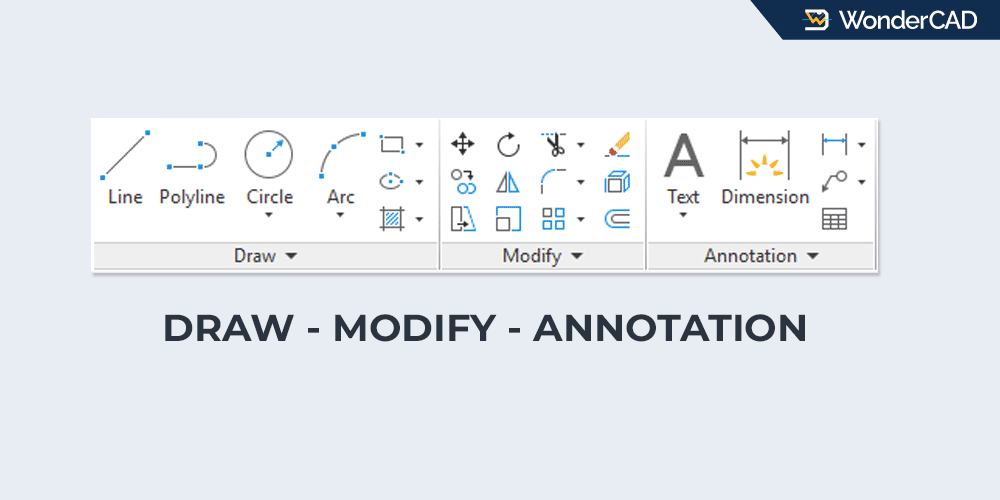
You can find the TRIM command in the Modify panel on the Home tab of the Ribbon. If your workspace displays the Menu Bar, you can also access the TRIM command from the Modify menu.
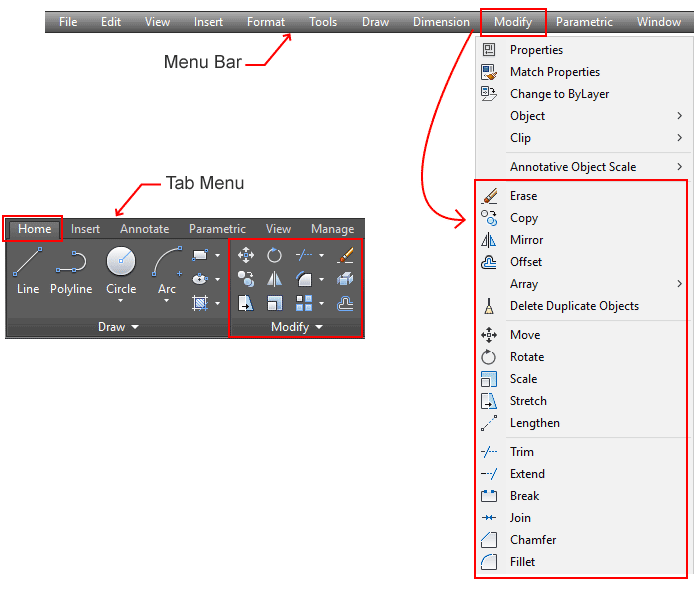
If you prefer using the Command Line, simply type TR and press Enter to start the TRIM command.
In the default method, when you start the TRIM command, AutoCAD prompts you to select the cutting edges first and then select the objects to be trimmed.
If you press Enter immediately without selecting any cutting edges, AutoCAD automatically treats all visible objects in the drawing as cutting edges. This allows you to trim any object as long as a valid cutting edge exists. This workflow is commonly referred to as the Quick TRIM method.
Besides the default and Quick methods, the TRIM command offers several additional options and workflows. Each of them will be explained in the “Prompts and Options” section.
A. How to Trim Objects in AutoCAD
In this section, you will learn how to trim objects in AutoCAD using the default TRIM workflow and the Quick TRIM method. These are the two methods most commonly used by AutoCAD users.
» Default Method
To trim objects using the default method, follow these steps:
- Start the TRIM command.
- Select the objects to be used as cutting edges, then press Enter.
- Select the portions of objects that you want to trim.
- Press Enter to end the command.
See the illustration below.
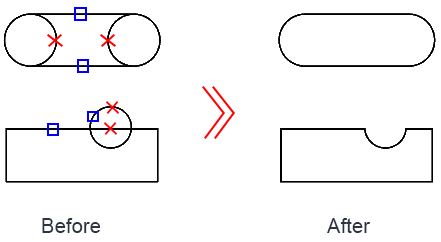
In the illustration above, the blue squares represent the selected cutting edges, while the red X marks represent the objects to be trimmed. The result is shown in the illustration on the right.
» Quick TRIM method
To trim objects using the Quick TRIM method, follow the steps below:
- Start the TRIM command.
- Simply press Enter without selecting any objects.
- Select the portions of objects that you want to trim.
- Press Enter to end the command.
The Quick TRIM method can save time because all visible objects are automatically used as cutting edges, so you do not need to select them individually. However, if you are not careful, you may accidentally trim objects that you did not intend to trim.
In contrast, when using the default method, you explicitly define the cutting edges. As a result, you cannot trim objects outside the boundaries defined by those cutting edges.
B. Prompts and Options
When using the TRIM command, you may see the following prompts and options in the Command Line:
- Select Cutting Edges: Specifies one or more objects to be used as cutting edges. Both the cutting edges and the objects to be trimmed are projected onto the XY plane of the current UCS.
- Select Object: Allows you to manually select the cutting edges.
- Select All: Uses all visible objects in the drawing as cutting edges.
- Object to Trim: Selects the objects or portions of objects to be trimmed.
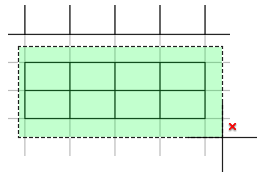
- Crossing: Trims objects by defining a crossing window with two points. Objects intersected by the crossing window are trimmed. See the illustration below.

- Shift + Select to Extend: Hold down the Shift key while selecting an object to extend it to the nearest cutting edge instead of trimming it.
- Fence: Trims objects by dragging a fence line across the objects to be trimmed.
- Crossing: Trims objects by defining a crossing window with two points. Objects intersected by the crossing window are trimmed. See the illustration below.
- Project: Specifies the projection method used by the TRIM command.
- None: No projection is applied. The cutting edges and the objects to be trimmed must lie on the same plane in a 3D view.
- UCS: Allows objects to be trimmed even if they do not physically intersect in 3D space, provided they intersect when projected onto the XY plane of the current UCS.
- View: Allows objects to be trimmed even if they do not physically intersect, provided they appear to intersect in the current view.
- Edge: Controls whether trimming requires an actual intersection with the cutting edge.
- Extend: Objects can be trimmed even if they do not intersect the cutting edge, as long as they would intersect if the cutting edge were extended.
- No Extend: Objects can only be trimmed if they actually intersect the cutting edge.
- Erase: Removes objects that cannot be trimmed because no valid cutting edge exists.
- Undo: Reverses the last trimming operation.
Leave a Reply