
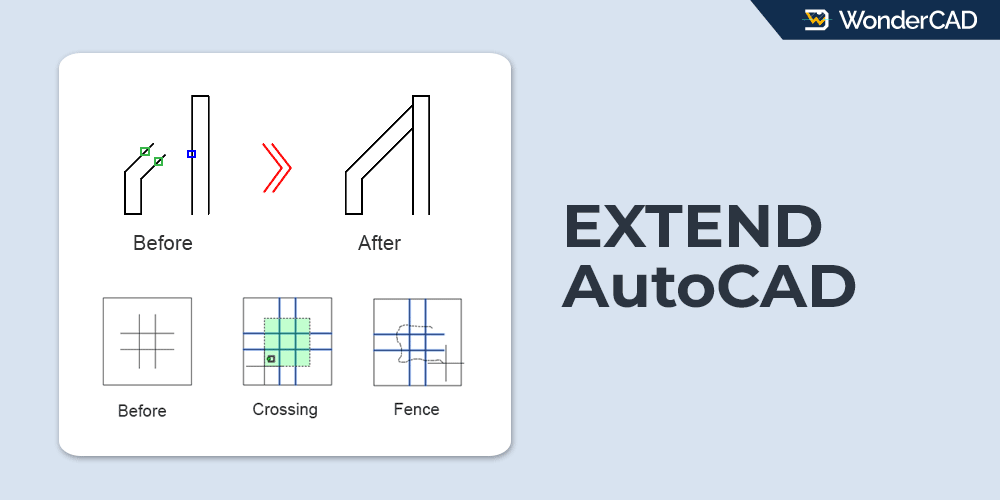
In this tutorial, you will learn how to use the EXTEND command in AutoCAD.
The EXTEND command is used to extend an object until it touches another object in front of it that you select as the boundary edges (the objects you selected as extend boundaries). It is the opposite of the TRIM command.
The command icon and keyboard shortcut are shown in the table below.
| Command | EXTEND |
| Function | Extend an object until it reaches a selected boundary edges. |
| Icon |  (new) (new) (old) (old) |
| Shortcut | EX |
The EXTEND command belongs to the Modify command group. You can find this command in the Modify panel on the Home tab of the Ribbon.
The EXTEND command is grouped together with the TRIM command, so you may need to click the flyout button next to the TRIM icon to access it.
If your workspace displays the Menu Bar, you can find the EXTEND command in the Modify menu.
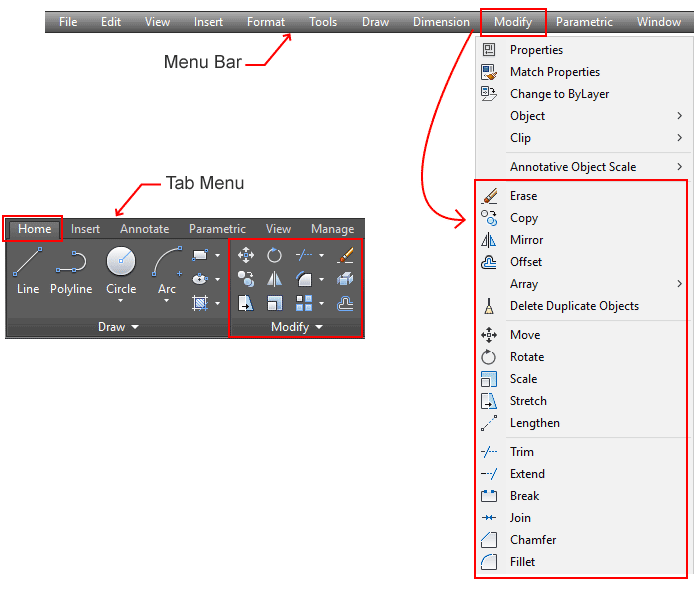
However, if you prefer working from the command line, simply type EX and press Enter to activate the EXTEND command.
As mentioned earlier, the EXTEND command is the opposite of the TRIM command. The two commands differ only in their function, while the options and methods used are almost entirely the same.
When you use the EXTEND command with the default method, you will be prompted to specify boundary edges. This means you need to select the objects that will be used as extend boundaries. After that, you will be prompted to specify the objects to extend.
If you press Enter before selecting any extend boundaries, all objects in the drawing area will be treated as extend boundaries. This allows you to extend any object as long as there is another object in front of it that can be used as an extend boundary.
The EXTEND command also includes several other methods of use, which will be explained later in the “Prompts and Options” section.
A. How to Extend Objects in AutoCAD
To extend objects using the default method in AutoCAD, follow the steps below:
- Start the EXTEND command.
- Specify the objects to be used as extend boundaries, then press Enter.
- Specify the objects to extend (click near the ends of the objects).
- Press Enter to end the command.
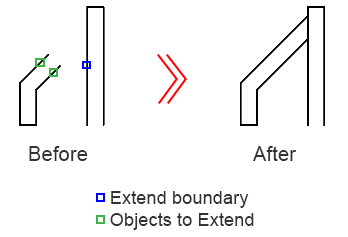
Note: If you press Enter directly in step 2 without specifying any extend boundaries, all objects in the drawing area will be treated as extend boundaries. As a result, you can extend any object in the drawing area as long as there is another object in front of it.
B. Prompts and Options
While using the EXTEND command, you may see some of the following prompts and options:
- Select boundary edges: Specifies one or more objects to be used as extend boundaries. Both the extend boundaries and the objects to be extended are projected onto the XY plane of the current UCS.
- Select Object: Allows you to manually select the extend boundaries.
- Select All: Uses all visible objects in the drawing as extend boundaries.
- Object to Extend: Selects the objects to be extended.
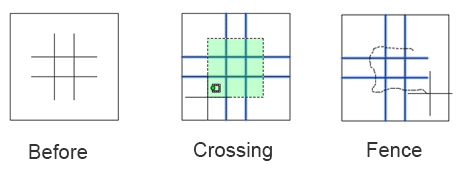
- Crossing: Extends objects by defining a crossing window with two points. Objects intersected by the crossing window will be extended.
- Fence: Extends objects by dragging a fence line across the objects to be extended. See the illustration below.

- Shift + Select to Trim: Hold down the Shift key while selecting an object to trim it to the nearest cutting edge instead of extending it.
- Project: Specifies the projection method used by the EXTEND command.
- None: No projection is applied. The boundary edges and the objects to be extended must lie on the same plane in a 3D view.
- UCS: Allows objects to be extended even if they do not physically intersect in 3D space, provided they intersect when projected onto the XY plane of the current UCS.
- View: Allows objects to be extended even if they do not physically intersect, provided they appear to intersect in the current view.
- Edge: Controls whether extending requires an actual intersection with the boundary edge.
- Extend: Objects can be extended even if they do not intersect the boundary edge, as long as they would intersect if the boundary edge were extended.
- No Extend: Objects can only be extended if they actually intersect the boundary edge.
- Undo: Reverses the last extend operation.
Leave a Reply