
In this tutorial, you’ll learn how to use the COPY command in AutoCAD.
The COPY command is used to create copies of selected objects and place them wherever needed.
You can create a single copy or multiple copies at the same time. The Array option allows you to create multiple copies with equal spacing between them. We’ll cover this option in detail later in the tutorial.
The icon and shortcut for the COPY command are shown in the table below.
| Command | COPY |
| Function | Creates copies of selected objects |
| Icon |  |
| Shortcut | C |
The COPY command belongs to the Modify command group.
You can find the COPY command in the Modify panel on the Home tab of the Ribbon. If your workspace displays the Menu Bar, you can also access the COPY command from the Modify menu.
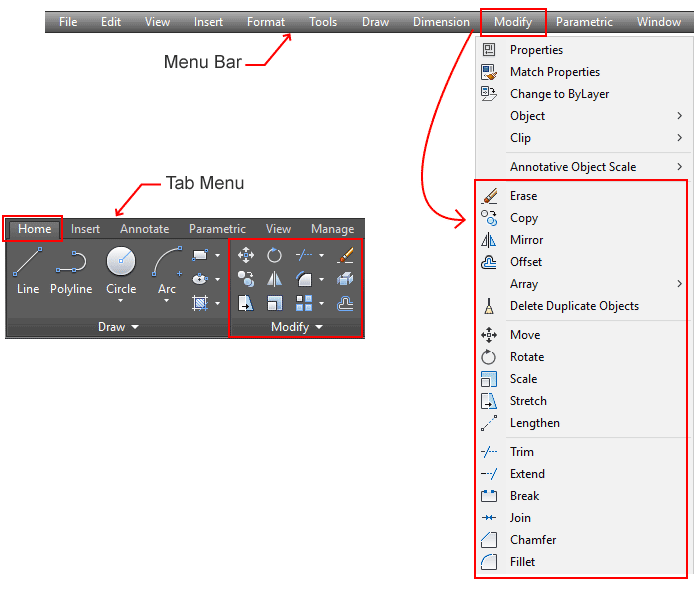
If you prefer working from the command line, simply type C and press Enter to start the COPY command.
A. Copy Methods
Similar to the MOVE command, the COPY command also provides two methods for creating copies:
- Default Method – Copies objects by specifying a base point and a destination point.
- Displacement Method – Copies objects by specifying displacement values along the X, Y, and Z axes.
When using the Default Method, you will be prompted to specify a base point and a second point (destination point). Both points can be selected from the objects being copied or from reference points on other objects.
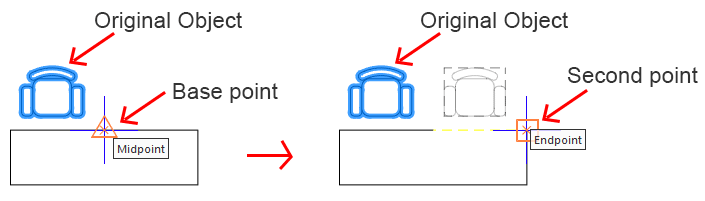
Make sure OSNAP is enabled to ensure accurate point selection when choosing reference points. However, if precision is not required, you can simply click anywhere in the drawing area.
In the Default Method, after specifying the base point, the Array option will appear on the command line. The Array option allows you to create multiple copies of an object at once, with equal spacing between each copied object.
For example, if you want to create five copies of an object, select the Array option from the command line, enter 5 for the number of items, and then press Enter.
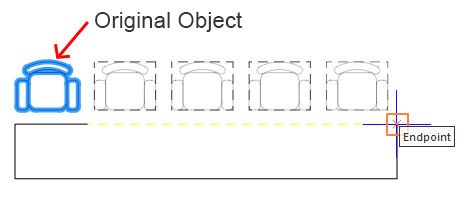
At this point, if you proceed by specifying the second point, the distance between the base point and the second point will be used as the spacing between each copied object.
However, if you choose the Fit option from the command line and then specify the second point, the distance between the base point and the second point will define the overall distance from the first object to the last copy. The spacing between the copies will be adjusted automatically.
When using the Displacement Method, you will be prompted to enter displacement values along the X, Y, and Z axes.
For example, suppose you want to copy an object 50 units in the positive X direction, 30 units in the negative Y direction, while keeping the Z value unchanged. You can enter the displacement as 50,-30,0. If you are working with a 2D drawing, you can ignore the Z axis and simply type 50,-30 then press Enter.
B. How to Use the COPY Command
To copy objects using the Default Method, follow these steps:
- Start the COPY command.
- Select the objects to be copied, then press Enter.
- Specify the base point.
- Specify the second point (destination point).
By default, the COPY command ends automatically after Step 4. However, if you want to place copies in multiple locations without restarting the command, you can enable Multiple mode from the command line.
To do this, start the COPY command, select the mOde option from the command line, and then choose Multiple. Once Multiple mode is enabled, you can create as many copies as needed without having to restart the command.
In Multiple mode, the command does not end automatically after you specify the second point. Instead, the COPY command continues to prompt for additional second points. To finish the command, press Esc or Enter.
This setting remains active for subsequent COPY commands and will continue to be used until you change it back to Single mode.
To copy objects using the Displacement Method, follow these steps:
- Start the COPY command.
- Select the objects to be copied, then press Enter.
- Choose the Displacement option from the command line.
- Enter the displacement values along the X, Y, and Z axes to specify the location of the copied objects.
These values are measured relative to the original objects. If you are working with a 2D drawing, you can ignore the Z value.
Note: Most commands in the Modify group allow you to preselect objects before starting the command. Therefore, you can reverse Steps 1 and 2 if you prefer.
C. Prompts and Options
When using the COPY command, you may see the following prompts and options on the command line:
- Select Objects – Prompts you to select the objects to be copied.
- Specify Base Point – Prompts you to specify the base point (reference point).
- Specify Second Point – Prompts you to specify the location where the copied objects will be placed.
- Displacement – Allows you to copy objects by specifying displacement values along the X, Y, and Z axes relative to the original objects.
- Array – Allows you to create multiple copies instantly by specifying the number of copies and their spacing.
- mOde – Provides options for controlling how the COPY command behaves.
- Single – The command ends after placing one copy.
- Multiple – Allows the COPY command to create multiple copies without restarting the command each time.
Leave a Reply