
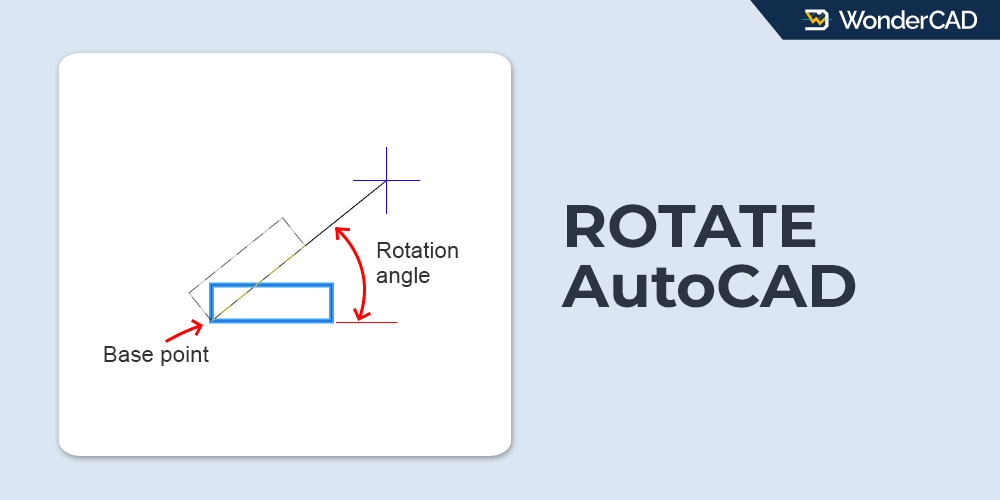
In this tutorial, you will learn how to use the Rotate command in AutoCAD.
The Rotate command is used to turn selected objects around a base point by a specified angle.
It is one of the most frequently used Modify tools and can help you quickly adjust the orientation of objects in your drawing.
The Rotate command icon and keyboard shortcut are shown in the table below.
| Command | ROTATE |
| Function | Rotates selected objects around a specified base point by a specified angle. |
| Icon |  |
| Shortcut | RO |
The Rotate command is part of the Modify tools in AutoCAD.
You can start the command by clicking the Rotate icon in the Modify panel on the Home tab of the Ribbon. If the Menu Bar is displayed, you can also access the command from the Modify menu.
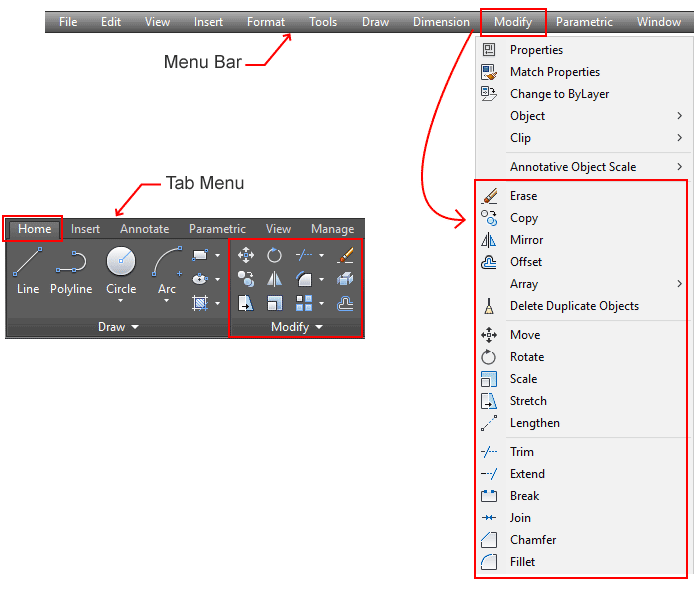
If you prefer working from the command line, you can start the Rotate command by typing RO and then pressing Enter.
In the default mode, the Rotate command requires you to specify a base point and a rotation angle.
The base point acts as the center of rotation. A positive angle rotates the selected objects counterclockwise (CCW), while a negative angle rotates them clockwise (CW).
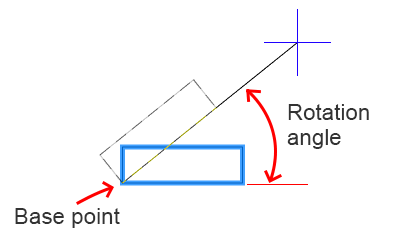
You can also rotate objects interactively without entering a rotation angle. To do this, after specifying the base point, move the cursor in the desired direction and click when the object reaches the required orientation. For more accurate results, consider using ORTHO Mode or Polar Tracking to control the rotation angle.
Note: To ensure accurate point selection, make sure that OSNAP is enabled.
A. How to Rotate Objects Using the Rotate Command
To rotate objects using the default method, follow the steps below:
- Start the Rotate command.
- Select the objects you want to rotate, then press Enter.
- Specify the base point.
- Enter the rotation angle and press Enter.
AutoCAD also provides the Reference option in the Rotate command. This option allows you to change an object’s orientation without having to determine the required rotation angle manually. Simply enter the object’s current angle as the reference angle, then specify the new angle you want the object to have.
The workflow is as follows:
- Start the Rotate command.
- Select the objects you want to rotate, then press Enter.
- Choose the Reference option from the command line.
- Specify the base point.
- Enter the reference angle, then press Enter.
- Enter the new angle, then press Enter.
Note: Most commands in the Modify group allow you to preselect objects before starting the command. Therefore, you can reverse Steps 1 and 2 if you prefer.
B. Prompts and Options
When using the Rotate command, you may see the following prompts and options:
- Select Objects: Prompts you to select the objects to be rotated.
- Specify Base Point: Prompts you to specify the base point, which serves as the center of rotation.
- Specify Rotation Angle: Prompts you to enter the rotation angle.
- Copy: Creates a copy of the selected objects. When this option is enabled, the original objects remain in their current position, while the copied objects are rotated by the specified angle.
- Reference: Allows you to rotate objects using a reference angle instead of entering the rotation angle directly.
Leave a Reply