
There are several ways to start a new drawing in AutoCAD. By default, when you open AutoCAD, you’ll see the Start screen. Within this screen, you’ll find several buttons that you can use to start a new drawing. See the image below:
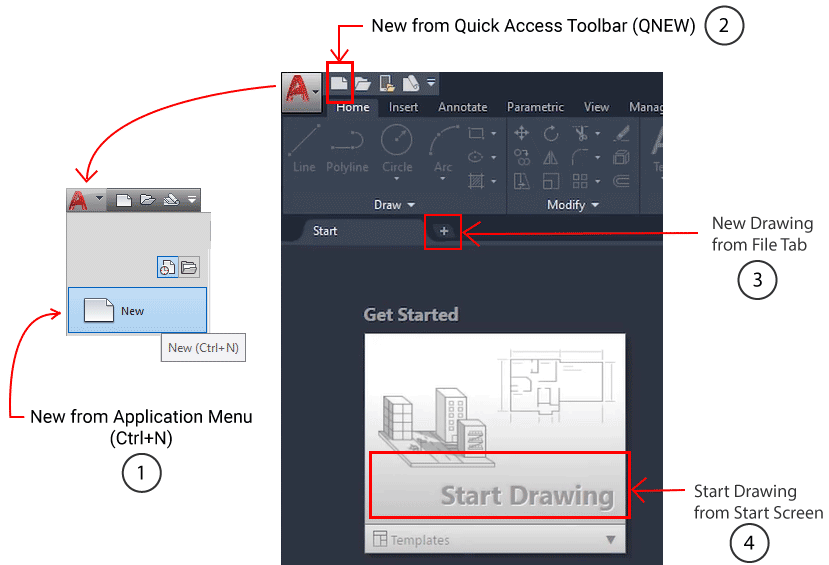
Here’s an explanation of each method:
1. “New” in the Application Menu
The “New” button in the application menu has the same function as the shortcut Ctrl+N.
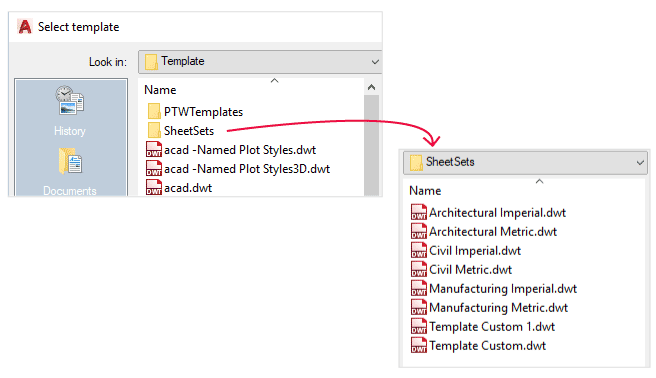
If you start a new drawing from this button, you’ll be automatically redirected to the template storage folder and prompted to select a template to start the new drawing. Choose a template that suits your needs.
A drawing template is a drawing file that contains predefined settings such as layers, dimension styles, and layout formats complete with title blocks, and is saved in the DWT file format.
By using a drawing template, you don’t need to repeat the same setup every time you create a new drawing.
Tip: If you don’t have your own template, you can use a ready-to-use AutoCAD template. To do this, once you’re redirected to the template storage folder, open the SheetSets folder. Select the metric template if you’re creating a drawing in millimeters, or the imperial template if you’re creating a drawing in inches.
2. “New” from Quick Access Toolbar
The “New” button in the Quick Access Toolbar has the same function as the QNEW command.
If you start a new drawing from that button and you’ve already defined a default template for QNEW, the new drawing will automatically use that template.
However, if you haven’t specified a default template, this button will function like the “New” button in the application menu, redirecting you to the template folder and prompting you to select a template manually.
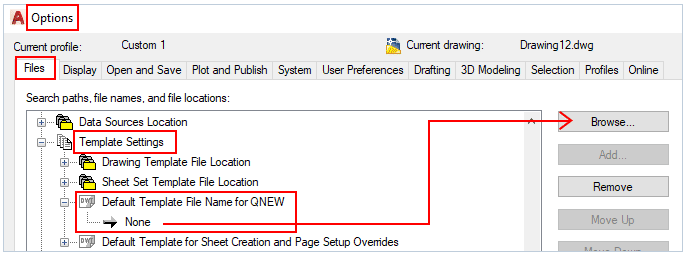
You can specify the default template in the Options dialog box by going to Files > Template Settings > Default Template File Name for QNEW.
3. New Drawing from File Tabs
The New Drawing button, or the + (plus) button in the File Tabs area, allows you to start a new drawing instantly.
If you start a new drawing from that button, and you’ve already defined a default template for QNEW, the new drawing will automatically use the default template. However, if you haven’t defined a default template, the new drawing will use the template last used in the previous drawing.
4. Start Drawing from Start Screen
The “Start Drawing” button on the Start Screen is often the first choice due to its easy-to-see location.
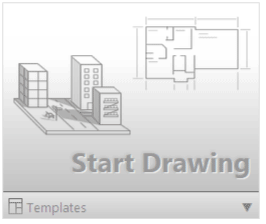
However, it’s important to note that below the Start Drawing button is a template dropdown menu. From this dropdown menu, you can select a template to use to start a new drawing.
A common mistake is starting a new drawing from the “Start Drawing” button on the Start screen without first selecting a template.
If the selected template does not match your drawing requirements, it can lead to problems such as incorrect units, unsuitable text styles, improper dimension settings, or non-standard layer configurations.
Leave a Reply