
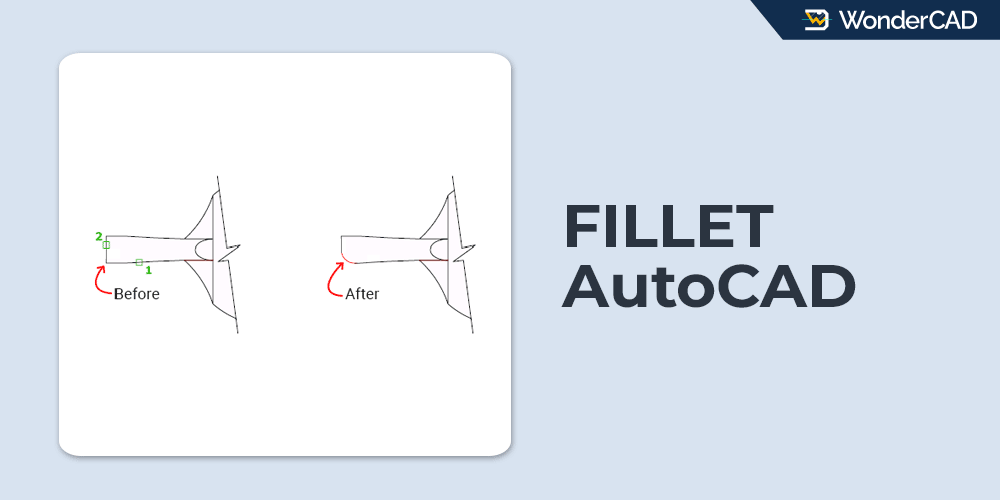
In this tutorial, you will learn the function of the FILLET command in AutoCAD and how to use it.
The FILLET command is used to create a rounded corner (radius) between two 2D objects or between two adjacent faces of a 3D solid object.
However, this tutorial focuses only on 2D drawings. For 3D solid models, a more convenient method is to create fillets using the FILLETEDGE command. We will discuss it in a future article.
The icon and shortcut for the FILLET command are shown in the image below.
| Command | FILLET |
| Function | Creates a rounded corner between two 2D objects or between two adjacent faces of a 3D solid object. |
| Icon |  |
| Shortcut | F |
The FILLET command is part of the Modify tools and is commonly used in drafting, especially for mechanical drawings.
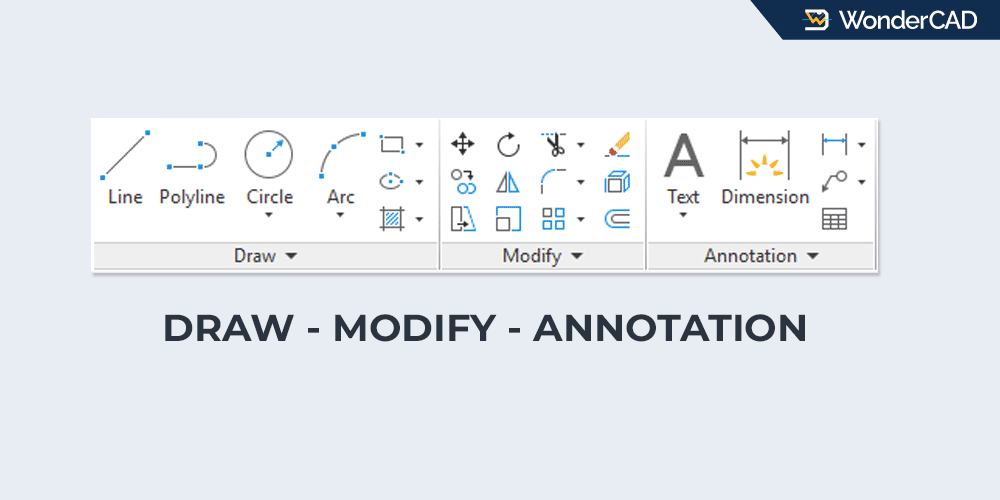
You can activate the FILLET command by clicking its icon in the Modify panel on the Home tab of the Ribbon.
If the Menu Bar is displayed in your workspace, you can also access the FILLET command from the Modify menu.
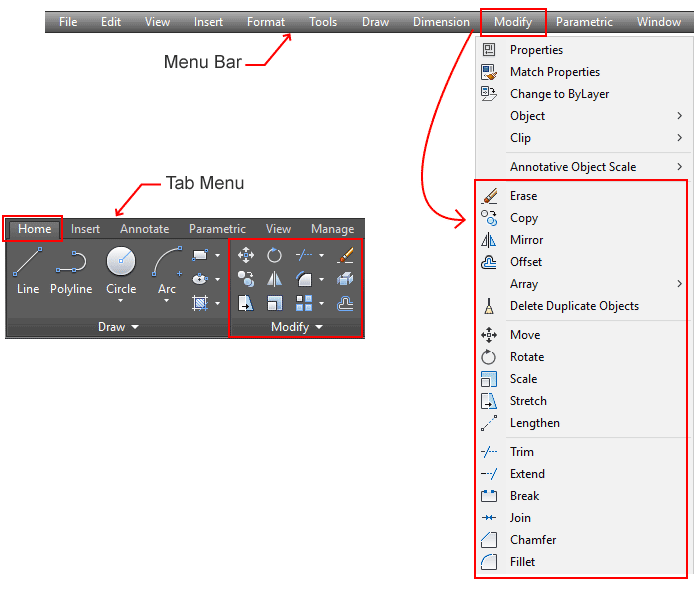
If you prefer working from the command line, simply type F and press Enter to activate the FILLET command.
A common workflow for creating a fillet is to specify the radius value immediately after starting the command and then select the two objects to be filleted. Once the fillet is created, the command automatically ends.
In addition to the standard workflow, the FILLET command provides several command-line options that can be used for different purposes.
For example, if you want to create fillets at multiple corners without restarting the command repeatedly, you can use the Multiple option. With this option, the FILLET command does not automatically end after creating a single fillet. You can continue creating additional fillets and even change the radius value as needed for other corners.
Another useful option is Polyline. If you want to apply the same fillet radius to all corners of a polyline, this option allows you to round every corner of the polyline with a single click.
Another important thing to understand is that the location where you click when selecting the objects to be filleted can affect the result. Clicking different locations may produce different results. See the image below:
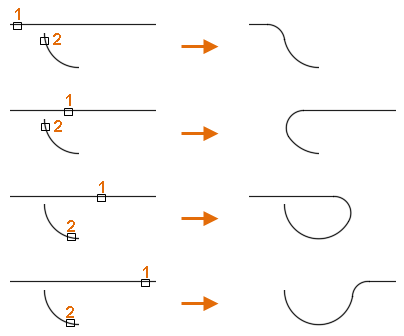
As shown in the image above, the same objects can produce different final shapes because of different click locations when creating a fillet.
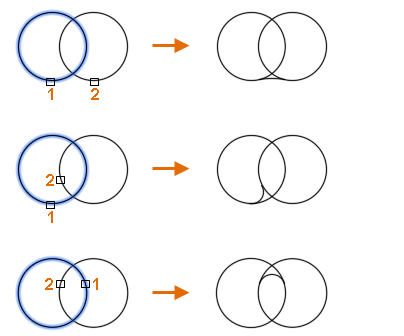
Another important thing to remember is that when you apply a fillet to a circle, the circle remains intact and is not trimmed. As shown in the image below:
A. How to Create a Fillet in AutoCAD
In this example, I will show you the most common way to create a fillet by specifying the radius value first. Follow the steps below:
- Start the FILLET command.
- Select the Radius option from the command line.

- Enter the desired fillet radius, then press Enter.
- Select the first object.
- Select the second object.

Note: If you do not specify a radius value, the FILLET command uses the radius value from the previous fillet operation.
B. Prompts and Options
When using the FILLET command, you may see the following prompts and options on the command line:
- Select first object — You are prompted to select the first object to be filleted.
- Select second object or shift-select to apply corner — You are prompted to select the second object to be filleted, or hold Shift while selecting the second object to create a sharp corner instead of a fillet.
When you hold Shift while selecting the second object, AutoCAD creates a corner with a radius of 0. If the objects extend beyond the corner, they are automatically trimmed to the intersection point. If they do not reach the corner, they are automatically extended until they intersect. - Undo — Cancels the most recently created fillet within the current FILLET command session.
- Polyline — Applies the current fillet radius to all corners of a polyline instantly.
- Radius — Specifies the radius value for the fillet.
- Trim — Controls whether the original corner geometry is trimmed after the fillet is created.
- Trim — The corner geometry is trimmed.
- No Trim — The corner geometry is retained.
- Multiple — Allows you to create multiple fillets without restarting the command.
Leave a Reply