
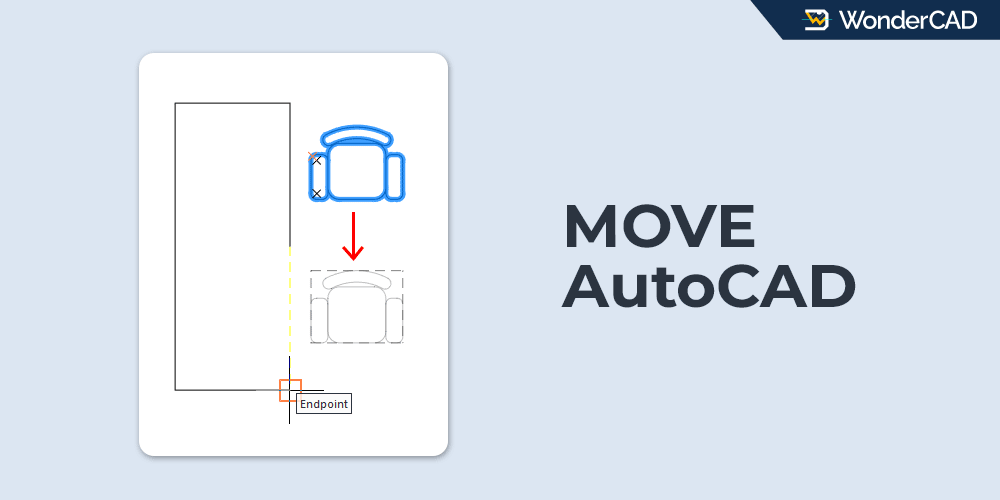
In this article, you’ll learn about the Move command in AutoCAD.
The Move command is used to relocate objects from one position to another within a drawing. The command icon and keyboard shortcut are shown in the table below.
| Command | MOVE |
| Function | Move object |
| Icon |  |
| Shortcut | M |
The Move command belongs to the Modify command group in AutoCAD.
You can start the MOVE command from the Modify panel on the Home tab of the Ribbon. Alternatively, you can access the command from the Modify menu on the Menu Bar.
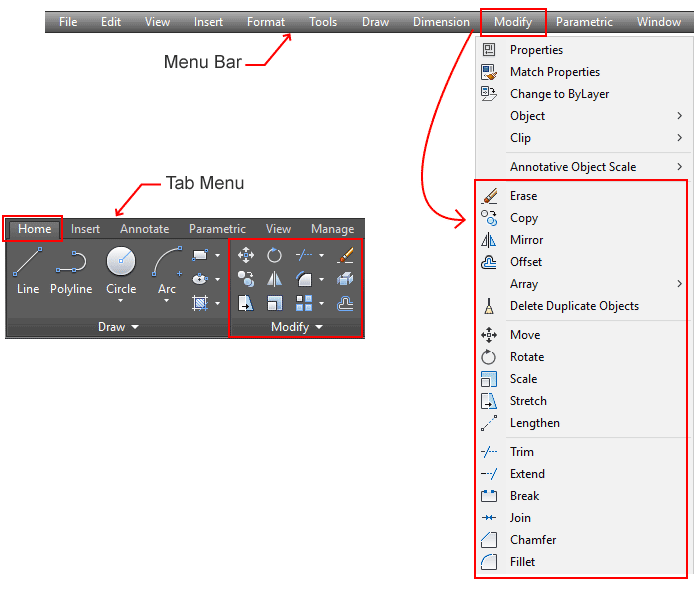
If you prefer to work from the command line, simply type M and press Enter to start the MOVE command.
A. MOVE Methods
The MOVE command provides two methods for moving objects:
- Default Method – Uses a Base Point and a Second Point.
- Displacement Method – Moves objects by specifying displacement values.
When using the Default Method, you must specify two points: the Base Point, which serves as the reference point, and the Second Point, which defines the object’s new location.
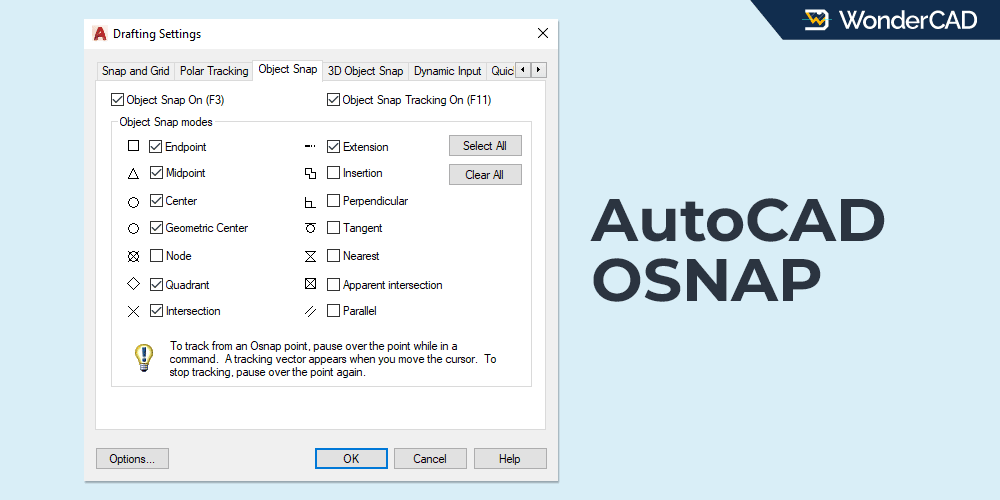
The Base Point and Second Point do not need to be selected from the object being moved. They can also be taken from other reference objects in the drawing. Make sure that OSNAP is enabled to ensure accurate point selection.
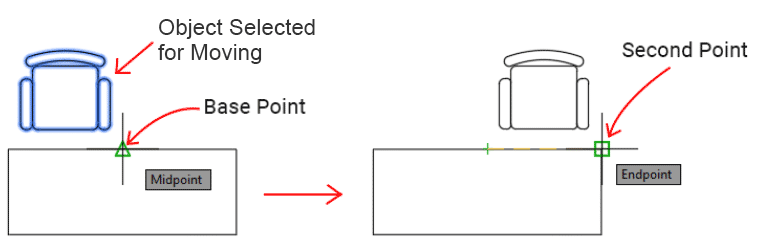
If precision is not required, you can simply pick any points in the drawing area.
In the Displacement Method, you must specify displacement values along the X, Y, and Z axes. When working with 2D drawings, the Z-axis value can be ignored.
B. How to Use the MOVE Command
To move objects using the Default Method, follow these steps:
- Start the MOVE command.
- Select the objects you want to move, then press Enter.
- Specify the Base Point.
- Specify the Second Point (destination point).
To move objects using the Displacement Method, follow these steps:
- Start the MOVE command.
- Select the objects you want to move, then press Enter.
- Choose the Displacement option from the command line. Alternatively, type D and press Enter.
- Enter the displacement values for the X, Y, and Z axes, then press Enter.
For example, entering 50,0,0 moves the selected objects 50 units in the positive X direction, while the Y and Z coordinates remain unchanged.
Note: Most commands in the Modify group allow you to preselect objects before starting the command. Therefore, you can reverse Steps 1 and 2 if you prefer.
C. Prompts and Options
When using the MOVE command, you may encounter the following prompts and options:
- Select Objects – Prompts you to select the objects to be moved.
- Specify Base Point – Prompts you to specify the reference point for the move operation.
- Specify Second Point – Prompts you to specify the destination point.
- Displacement – Allows you to move objects by entering displacement values along the X, Y, and Z axes.
Leave a Reply